Eclipse tips: opening classes and other files quickly
The first time I tried this trick for opening classes quickly, I couldn’t believe
I’d ever managed without it in Eclipse. The colleagues I showed it to looked equally astonished. The drawback of organizing files in a tree is how much work it takes to open them. You know you need file XYZ, but you may not know exactly where it lives in the project tree. Eclipse has the magic keyboard shortcuts Ctrl-Shift-T and Ctrl-Shift-R that let you open the right file in a fraction of a second.
Open type
Open Type is the dialog you open with Ctrl-Shift-T. It opens any Java type available to your open projects, including classes and interfaces in your own project or its libraries. To narrow the selection, start typing the name. You can also use a wildcard.
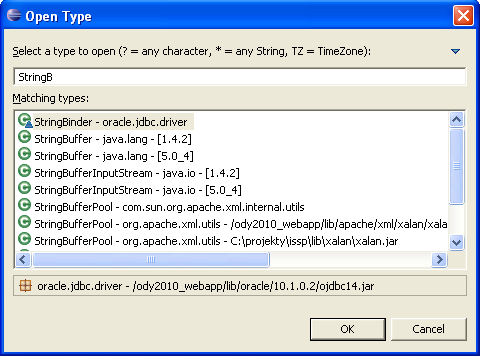
Say you have one project using Java 1.4 and another using 5.0 and you need to see the source for StringBuffer. The Open Type dialog lets you choose which one to display, as the previous image shows.
Open Resource
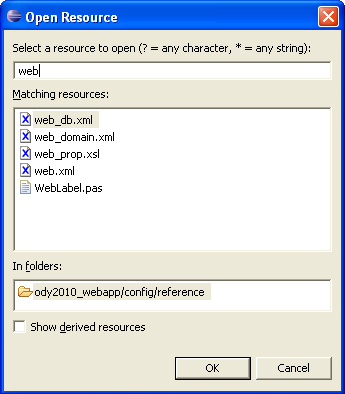
Open Resource differs from Open Type in that it can open any file in your open projects. Open Type covers Java types only.
Related articles
Related articles
Related CZ Podcast episodes
- #3 · Java 6 SE, Vývoj webových aplikací
Dagi and Filemon discuss Java 6 and web application frameworks. · Czech audio
- #1 · Vývojová prostředí v Javě
The first CZ Podcast episode looks at Java development environments. · Czech audio