How I introduced continuous integration at work, part II — Luntbuild
I'd like to follow up on my earlier post about introducing continuous integration, or CI, an XP practice. We'll look at a tool called Luntbuild, which lets you put CI into practice. Luntbuild does more than run Ant scripts. It also lets you manage and control individual builds.
Installation and use
Installation is simple. To run Luntbuild we only need Ant and
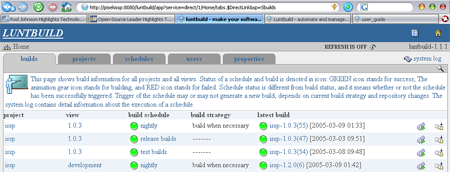
a servlet container such as Tomcat. In short, unpack the Luntbuild distribution, deploy the web module and set Luntbuild's home directory. In theory that's all if you're using CVS. In any case, the documentation describes installation well. You work with Luntbuild through a fairly intuitive web interface, so you won't have to pore over configuration files.
Luntbuild’s structure
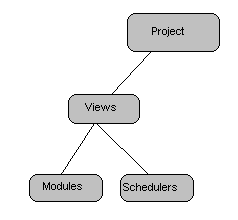
First, a word about how Luntbuild is organized. The basic unit is the build itself, but builds are organized into larger units. If we start at the other end, everything begins with a project.
Project
A project has a name, a description and a system for sharing source files,
such as CVS, Subversion or SourceSafe. Luntbuild supports others as well.
You can find more on the Luntbuild website. Configure access
to the version control system in the project and that's it. Within
each project you can define several views.
View
A view lets you define the basic properties of a build. You can have as many
views as you want within a project. A view is essentially a way of looking at a project from a build perspective. Say
a project has a mature release and a version still in development for the next release.
A view lets you set basic conditions for each of them, for example different versioning.
For each view you can choose a versioning scheme. For the mature version, for example, you could
change only the build number. You can also set a condition
for running the build. For example, it might only run if
source files in CVS have changed since the last build. You define the condition
for recognizing a successful build. You can specify the Ant file and target that will run
the build itself.
If it wasn't clear at the start, now's a good time for a quick aside. The build process itself is still up to us. In the Ant script we define a task that Luntbuild calls to do the work, such as compiling or creating a WAR. Ant also lets us call external programs. We use that, for example, to compile our thin clients written in Delphi by simply calling a batch file.
Within a view, you can set up a notification when a build finishes, for example by
email or instant message. You can also specify an Ant task to call
when the build finishes. It might publish the build on the web, for example,
or deploy it to a test server.
Module
A project can have several views, and views in turn are made up
of smaller parts called modules. A module defines
the connection to the version control system. With CVS, for example,
you specify a CVS repository path or the branch to pull
the source files from. An example makes the point of modules clearer.
We have version X, with a CVS branch that receives fixes for version X. We can define one module to pull the source files for version X and another that pulls all the fixed files. That way we won't forget to pull from the fixes branch during a build. Modules let us specify exactly how source files are obtained.
Build scheduler
Within a view, the build scheduler sits at the same level as the module. It defines when and how to start a build. Luntbuild comes with several types: Release, Nightly, Test and Continuous Integration Scheduler. The Nightly Scheduler, for example,
runs a build at 1:00 a.m. every day by default. In the scheduler you can set
a build type, which determines whether to check out only the changed
source files or do a clean checkout of everything.
You can choose whether to notify people when a build finishes, which we don't need for a test build, for example. The scheduler also lets you set a version control tagging strategy. With CVS, for example, we can ask
the Release Scheduler to tag the relevant source files
after every release build.
The Luntbuild model
Build details
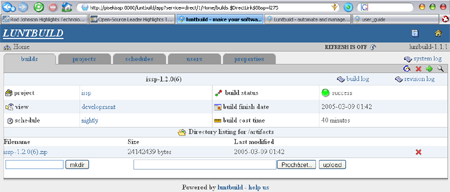
Each build has a detail page. You can see how long it ran, inspect the build log, check what's changed since the last build or download the resulting artifact. Here you can delete a build or move it from one view to another.
There's much more to say about managing individual builds, including deleting or moving them, and about everything else Luntbuild can do. I don't have that much time, but I hope this little look under the hood of a great build tool helps you in your work, whether or not you're using Luntbuild for the XP practice of continuous integration.
Related articles
Related CZ Podcast episodes
- #261 · Leadership
On leading people and teams. · Czech audio
- #3 · Java 6 SE, Vývoj webových aplikací
Dagi and Filemon discuss Java 6 and web application frameworks. · Czech audio
- #1 · Vývojová prostředí v Javě
The first CZ Podcast episode looks at Java development environments. · Czech audio