Why I Switched from Eclipse to NetBeans and Back Again
I needed to build a demo web application for one of my articles. I’d heard good things about NetBeans 5.0, so I decided to swap my usual IDE, Eclipse, for NetBeans and write the application there. Here are a few things I noticed while using it.
Getting settled
Keyboard layout
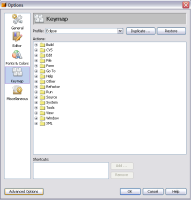
I rely on Eclipse shortcuts. After a few fruitless attempts, I realized I’d just be hammering away at the keyboard unless I changed the layout. Fortunately, NetBeans has a preset keymap for Eclipse users. Go to Tools >> Options >> Keymap >> Profile >> Eclipse.
NetBeans keymap settings
Code completion
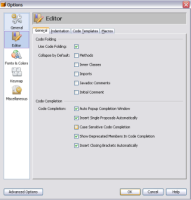
Quick question: what do you think happens if you type string or Stringb and try code completion with Ctrl+Space? If you said nothing, you’re right. You get no suggestions. The people at Sun decided that code completion should be case sensitiveby default. Fortunately, you can change this stupid setting under Tools >> Options >> Editor >> Case Sensitive Code Completion.
NetBeans code completion
Compilation
If you’re used to classes and their dependencies compiling when you save, forget it. You have to start compilation explicitly with Build >> Compile.
Error and warning settings
Unfortunately, there’s nothing like the severity settings under Eclipse Java Compiler Settings. You can’t set warnings for unused variables, type-unsafe operations, or nonstatic access to static variables, for example.
Putting the IDE to work
Once I’d set up the IDE the way I wanted it, I got down to coding the application.
Too few views
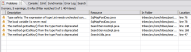
One of my biggest complaints is the lack of views, or windows, onto basic code artifacts. In particular, I mean the Problems view in Eclipse, where you can see every error or warning for the selected file or project, and its Javadoc view. Javadoc deserves a paragraph of its own.
Eclipse Problems view
Javadoc
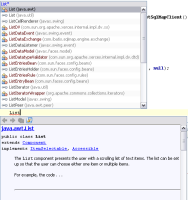
I don’t know another way to do it, but the only time I can open Javadoc is during code completion. Show javadoc on the context menu would probably work, but I’d have to configure a directory with generated JDK Javadoc myself. I don’t have separate Javadoc because Eclipse has spoiled me. All I have to give it is the source code. When I do use standalone Javadoc, I use HTML Help.
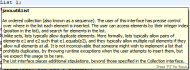
I’m used to at least two ways of seeing Javadoc in Eclipse: in a dedicated, docked Javadoc view, and in a tooltip when I hover over an object or method in the code.
NetBeans Javadoc
Eclipse Javadoc view
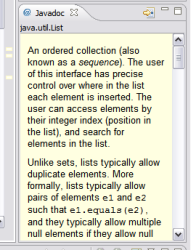
Eclipse Javadoc tooltip
Little things I’d like to see
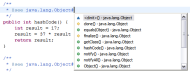
- Code completion while writing Javadoc. It’s addictive.
- Generating getters and setters directly for selected fields. It took me about ten minutes to discover Encapsulate Fields in the Refactor menu.
- For exception handling there’s only Surround with try-catch and Add throws clause for …. There’s no Add catch clause to surrounding try.
- Code completion doesn’t offer the methods of an anonymous inner class.
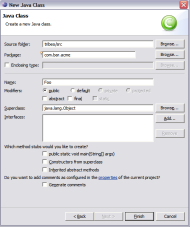
- The New Class wizard doesn’t let you set a superclass or an interface.
- There’s no Link with Editor option to select the current source file in the project tree.
Eclipse Javadoc code completion
Eclipse New Class wizard
The good parts
- An integrated servlet container, Tomcat, with views for logs, HTTP monitoring, and so on.
- Web application packaging and deployment ready to go.
- Easy JSP debugging.
- Integrated support for writing JSP, including validation, JSTL code completion and HTML help.
Summary
I spent at least twenty solid hours in NetBeans and can confirm the old truth that you get used to things. Compared with Eclipse, NetBeans is far less comfortable for writing code. That’s especially true of Javadoc integration, code completion, and small things like Link with Editor, which add up to a real productivity gain. NetBeans does deserve credit for a well-designed deployment process for web projects and for the whole web integration, from deployment through JSP debugging.
Related articles
Related CZ Podcast episodes
- #261 · Leadership
On leading people and teams. · Czech audio
- #3 · Java 6 SE, Vývoj webových aplikací
Dagi and Filemon discuss Java 6 and web application frameworks. · Czech audio
- #1 · Vývojová prostředí v Javě
The first CZ Podcast episode looks at Java development environments. · Czech audio