Tip: Teach PSPad to Run XSL Transformations
If you’ve taken to using PSPad for XML and XSL work, it might be handy to configure it to run XSL transformations directly from the editor, then open the result in the editor or a browser. PSPad lets you associate a “compiler” with each specific format. It’s a program you can pass the current file to.
To run the transformation, you can use a little utility of mine. You’ll need Java, specifically a JRE. Once you’ve downloaded and unpacked the utility, edit the path in xslt.bat.
You can try the utility at the command line. I recommend putting it on your path so you can call it from anywhere.
xslt.bat xml soubor xsl soubor vystupní soubor
 xslt.bat source template output.html
 xslt.bat source template
The batch file adds file extensions automatically (for XML it adds .xml and for XSL it adds .xsl). If that doesn’t suit you, change the batch file itself. The output file, where the transformation result goes, is optional. Without it, the result is printed to the console.
Configuring PSPad
Settings (Nastavení) >> Highlighters settings (Nastavení zvýrazňovačů) >> XML >> Compiler (Kompilátor)
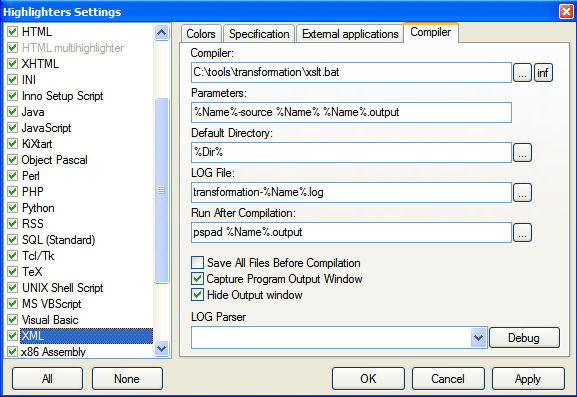
- Compiler — the path to the batch file itself.
- Parameters — arguments to pass to the batch file. PSPad offers context variables you can reference. For example,
%Name%stands for the name of the file you’re editing. We’ll set the batch arguments to%Name%-source %Name% %Name%.output. When editing a file such as foo.xsl, this runsxslt.bat foo-source foo foo.output tj. předpokládá se existence souboru foo-source.xml a výsledek bude zapsán do souboru foo.output. - Default dir — the directory to use as the working directory (
%Dir%) - LOG File — the file to write logs to.
- Run After Compilation — the program to call after compilation, or in our case after the transformation. If you want the result to open in PSPad again, set it as I did:
pspad %Name%.output(PSPad has to be on your path in that case). You can also open the result in a web browser, for example. - Select Capture Program Output Window and Hide Output Window to keep the console from popping up.
Now, whenever you press Ctrl+F9 while editing an XSL file, PSPad will run the transformation and open the result in the program you selected.
Related articles
Related CZ Podcast episodes
- #217 · Ivo Lukačovič
On Windy, JavaScript and building companies. · Czech audio
- #3 · Java 6 SE, Vývoj webových aplikací
Dagi and Filemon discuss Java 6 and web application frameworks. · Czech audio
- #1 · Vývojová prostředí v Javě
The first CZ Podcast episode looks at Java development environments. · Czech audio